

Running seasonal campaigns on Meta (Facebook and Instagram) can significantly boost your e-commerce sales, but managing product catalogues for different seasons can be challenging. This guide will walk you through creating and optimizing seasonal catalogues in Shopify that seamlessly integrate with your Meta ad campaigns.
Why Seasonal Catalogues Matter
Seasonal catalogues allow you to showcase relevant products at the right time, improving ad relevance scores and conversion rates. Instead of manually updating your entire catalogue or creating new campaigns from scratch each season, you can prepare organized collections that automatically sync with Meta’s Commerce Manager.
Step 1: Organize Your Products in Shopify
Before creating your seasonal catalogue, you need to properly organize your products in Shopify.
Creating Seasonal Collections
Navigate to Products > Collections in your Shopify admin panel. Click “Create collection” and set up automated collections based on seasonal criteria.
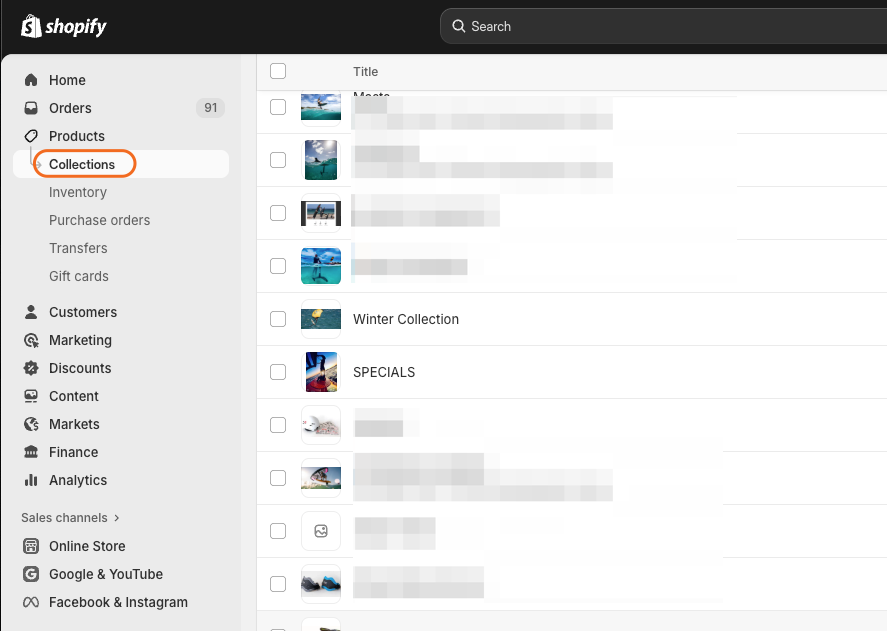
For your seasonal collection, consider using automated conditions such as:
- Product tags (e.g., “summer-2024”, “holiday-gifts”, “back-to-school”)
- Product type combinations
- Inventory levels
- Price ranges specific to seasonal promotions
Name your collections clearly, such as “Winter 2025 Collection” or “Holiday Gift Guide 2025”. This organization will be crucial when setting up your Meta catalogue.
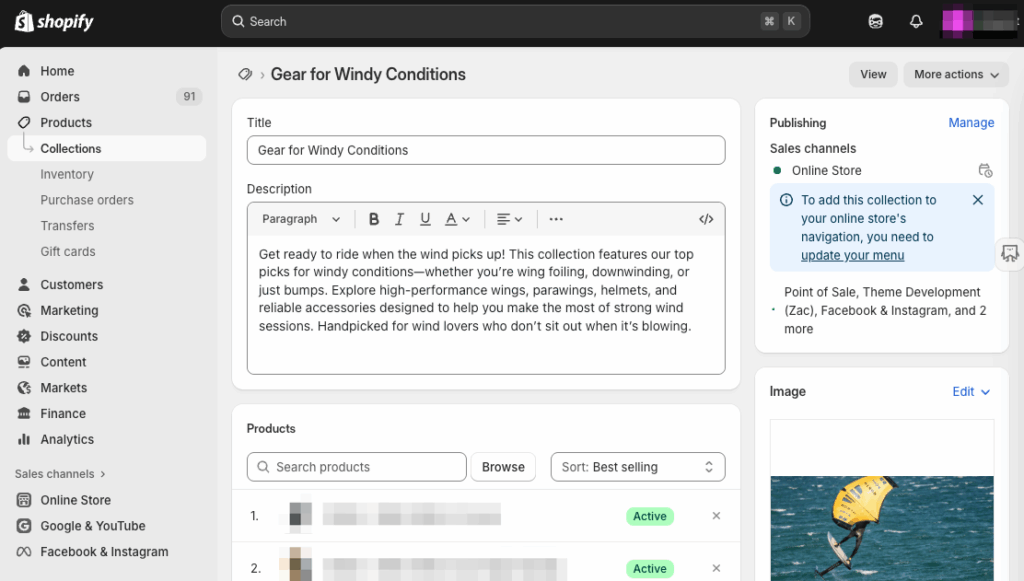
Adding Seasonal Product Tags
Product tags are your best friend for seasonal catalogue management. Go to each product and add relevant seasonal tags in the “Organization” section of the product page.
Recommended tagging structure:
- Season + Year (e.g., “spring-2024”)
- Holiday specific (e.g., “valentines-day”, “black-friday”)
- Weather-based (e.g., “cold-weather”, “beach-ready”)
- Occasion-based (e.g., “graduation-gifts”, “wedding-season”)
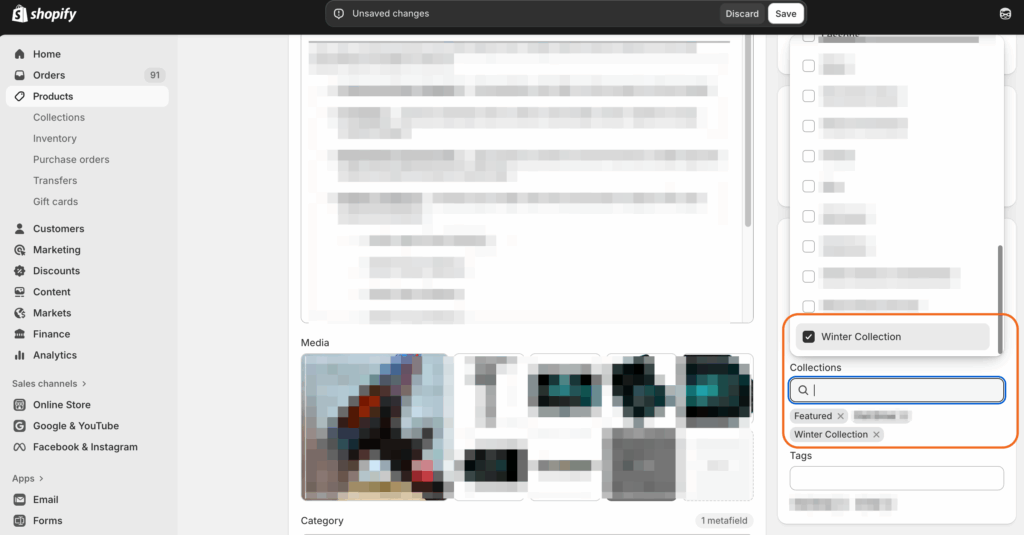
Step 2: Set Up the Facebook Channel in Shopify
If you haven’t already, install the Facebook channel from the Shopify App Store. This creates the bridge between your Shopify inventory and Meta’s advertising platform.
Navigate to Sales channels > Facebook in your Shopify admin. Follow the connection process to link your Meta Business Manager account.
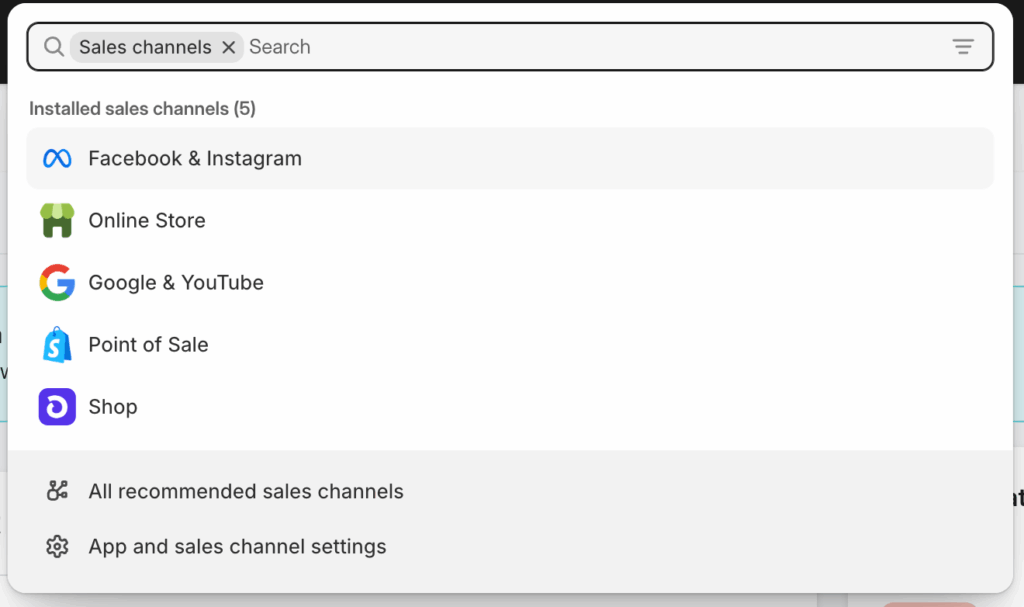
Once connected, you’ll see options for:
- Shop setup
- Marketing activities
- Commerce Manager access
- Product syncing preferences
Make sure “Enable product syncing” is turned on to keep your catalogues updated automatically.
Step 3: Configure Product Sets in Meta Commerce Manager
Now comes the powerful part – creating seasonal product sets within Meta’s Commerce Manager.
Accessing Commerce Manager
From your Meta Business Suite, navigate to Data Sources > Catalogue.
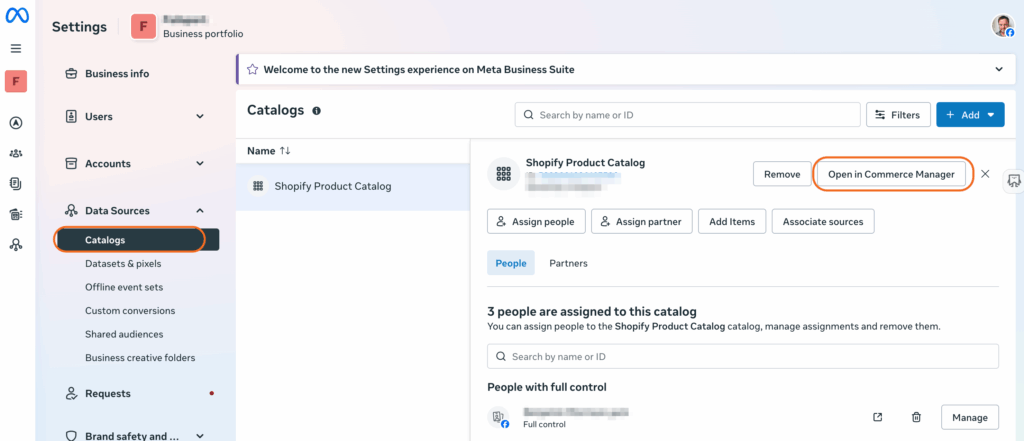
Click thn Open in Commerce Manager to access the Meta Catalogue Commerce Manager.
Creating Seasonal Product Sets
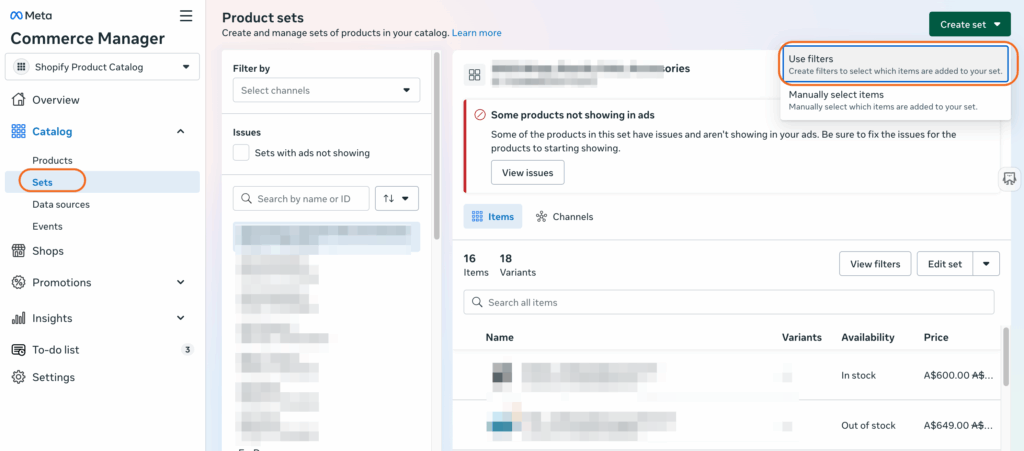
Click on “Sets” in the left menu, then “Create Set”. This is where you’ll define your seasonal catalogues.
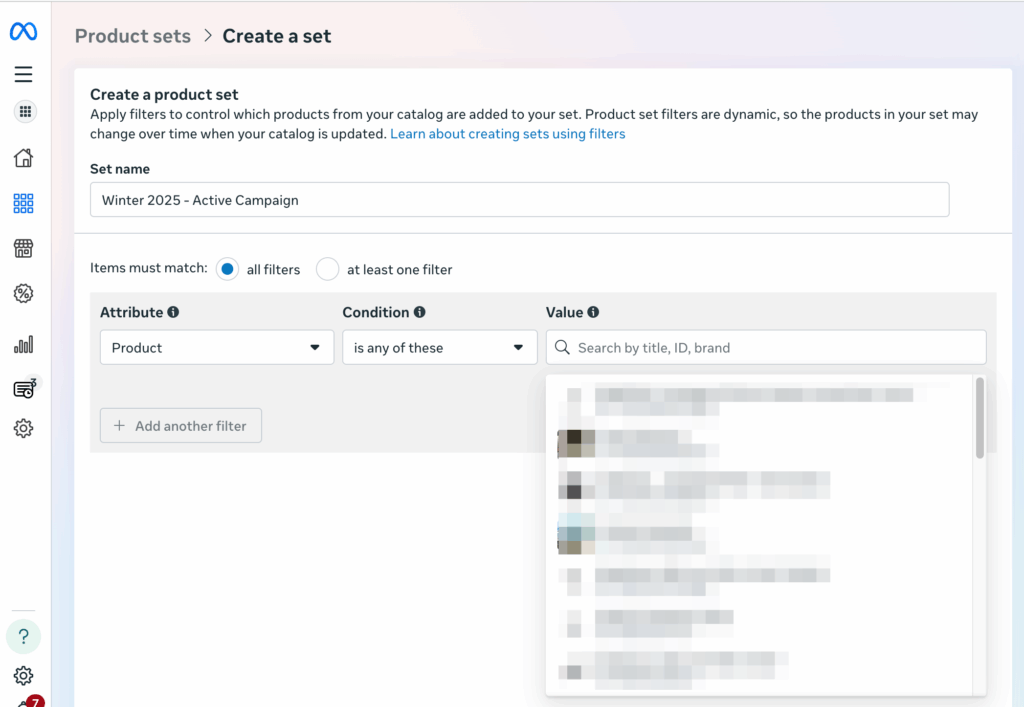
Choose “Use filters” to create dynamic sets that automatically update as you tag products in Shopify. Set your filters based on:
- Product categories matching your Shopify collections
- Custom labels (which pull from Shopify tags)
- Availability status
- Price ranges
For example, to create a “Summer 2024” product set:
- Add filter: Custom Label 1 contains “summer-2024”
- Add filter: Availability equals “in stock”
- Add filter: Product type equals your relevant categories
Name your set clearly (e.g., “Winter 2025 – Active Campaign”) so it’s easy to identify when creating ads. You can start manually adding products to your new Meta Catalog set.
Step 4: Create Dynamic Ads with Seasonal Catalogues
With your seasonal product sets ready, it’s time to create dynamic ads that automatically show the right products to the right audience.
Setting Up a Catalogue Sales Campaign
In Meta Ads Manager, create a new campaign with the “Sales” objective and select “Catalogue” as your campaign type.
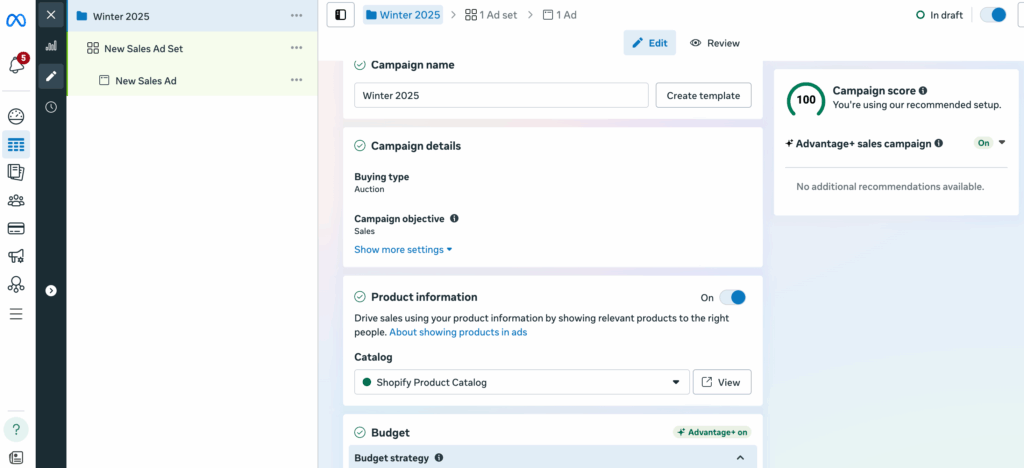
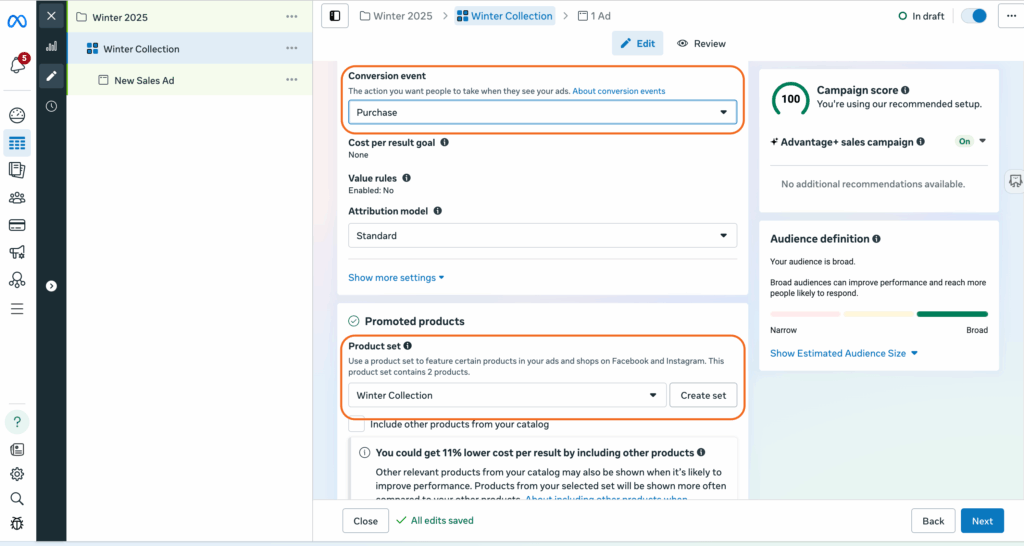
When setting up your ad set:
- Choose your seasonal product set from the dropdown
- Define your audience (consider creating seasonal audiences too)
- Set your optimization goal (typically “Conversions”)
- Configure your placement preferences
Creating Seasonal Ad Templates
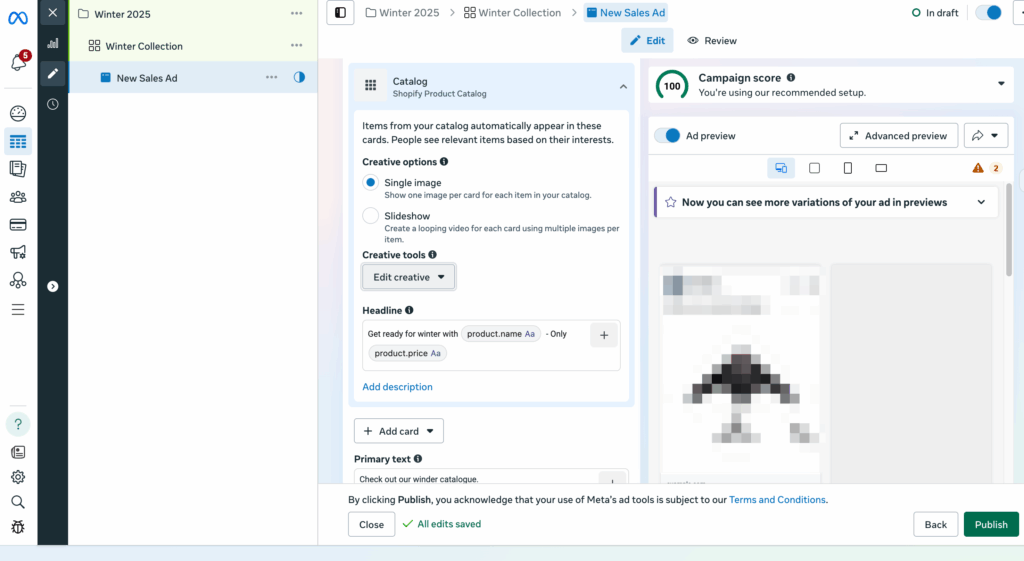
In the ad creation step, you can create templates that automatically pull product information while maintaining seasonal messaging.
Use dynamic parameters like:
- {{product.name}}
- {{product.price}}
- {{product.description}}
Combine these with seasonal copy:
- “Perfect for winter: {{product.name}}”
- “Holiday special – Save on {{product.name}}”
- “Get ready for winter with {{product.name}} – Only {{product.price}}”
Step 6: Automate Seasonal Transitions
To truly optimize your seasonal catalogue strategy, set up automation rules in both Shopify and Meta.
Shopify Flow Automation
Use Shopify Flow (available on Shopify Plus) or third-party apps to automatically:
- Add seasonal tags based on dates
- Move products between collections
- Update inventory status for seasonal items
- Adjust pricing for seasonal promotions
Meta Automated Rules
In Meta Ads Manager, create rules that:
- Pause summer campaigns when summer product sets drop below a certain number of items
- Increase budget for holiday campaigns during peak shopping days
- Adjust bids based on weather triggers or seasonal performance data
Best Practices for Seasonal Catalogue Management
- Start Early: Begin preparing your seasonal catalogues at least 6-8 weeks before the season starts. This gives you time to test and optimize.
- Maintain Consistency: Ensure your seasonal tags and labels are consistent across Shopify and Meta to avoid syncing issues.
- Monitor Performance: Use Meta’s Catalogue Insights to track which seasonal products perform best and adjust your sets accordingly.
- Test Different Segments: Create multiple product sets for the same season targeting different audience segments or price points.
- Update Regularly: Even with automation, manually review your seasonal catalogues weekly to ensure accuracy and relevance.
- Plan for Transitions: Have overlap periods where both seasons are running to capture early and late seasonal shoppers.
Troubleshooting Common Issues
Products Not Syncing: Check that your Facebook channel in Shopify is properly connected and that products meet Meta’s commerce policies.
Wrong Products in Sets: Review your filter logic in Commerce Manager and ensure Shopify tags are correctly applied.
Poor Ad Performance: Test different product sets, adjust your audience targeting, and ensure your seasonal messaging aligns with customer intent.
Next Level Weather-Triggered Campaigns: Activating Meta Campaigns Based on Real-Time Weather Conditions
While seasonal catalogues help you prepare for broad seasonal trends, imagine taking your Meta campaigns to the next level by responding to real-time weather changes. This is where weather-triggered advertising transforms from a nice-to-have into a powerful competitive advantage.
Why Weather Triggers Drive Immediate Results
Weather has an immediate and measurable impact on consumer behavior. A sudden cold snap drives demand for warming products, unexpected rain increases online shopping, and the first warm weekend of spring creates urgency for outdoor items. By connecting your Meta campaigns to real-time weather data through WeatherTrigger.com, you can automatically activate the right product sets at the exact moment demand spikes.
Consider these scenarios:
- Promoting rain jackets and umbrellas when rain is forecast for the next 48 hours
- Pushing cold beverages and BBQ supplies when temperatures exceed 80°F
- Advertising cozy indoor products during unexpected cold snaps
- Increasing budget for delivery-friendly items during severe weather warnings
Setting Up Weather-Responsive Product Sets
Building on the seasonal catalogue structure we’ve created, you can add an additional layer of weather-based organization. In your Shopify product tags, include weather-specific triggers:
- “temp-above-75” for warm weather products
- “rain-activated” for wet weather essentials
- “snow-ready” for winter storm items
- “wind-resistant” for gusty condition products
- “sunshine-essential” for UV and outdoor products
Map these to Custom Label 4 in your Meta Commerce Manager (as mentioned earlier), specifically designated for weather triggers. This creates product sets that can be instantly activated when specific weather conditions occur.
Connecting Weather Data to Campaign Automation
WeatherTrigger.com acts as the intelligence layer between weather forecasts and your Meta campaigns. The platform monitors weather conditions in your target locations and automatically triggers predefined actions in your Meta Ads Manager:
Temperature Triggers: Activate specific product sets when temperatures cross threshold points. For example, automatically switch from promoting iced coffee makers to hot chocolate bundles when temperatures drop below 50°F in your target markets.
Precipitation Triggers: Boost budget for indoor entertainment products, delivery options, or rain gear when precipitation is imminent. Conversely, pause outdoor furniture campaigns during extended rainy periods.
Severe Weather Responses: Automatically adjust messaging and product focus during extreme weather events – promoting emergency supplies before storms or comfort items during recovery periods.
UV Index and Air Quality: Trigger campaigns for sunscreen, outdoor gear, or air purifiers based on environmental conditions that affect daily activities.
Implementation Strategy
The beauty of weather-triggered campaigns lies in their automation. Once configured, WeatherTrigger.com continuously monitors weather patterns and adjusts your Meta campaigns accordingly:
- Define Your Weather Rules: Identify which weather conditions impact your products’ demand
- Create Responsive Product Sets: Organize your catalogue with weather-specific tags and filters
- Set Trigger Parameters: Configure temperature ranges, precipitation levels, and forecast windows
- Establish Campaign Actions: Determine whether to pause, activate, or adjust budget based on triggers
- Monitor and Optimize: Track performance data to refine trigger points and improve ROI
Real-World Performance Impact
Weather-triggered campaigns typically see 15-30% higher conversion rates compared to always-on campaigns because they reach customers at the moment of highest intent. A sunscreen brand might see conversions spike 40% when UV index triggers activate their campaigns. A food delivery service could experience 25% higher order values during rain-triggered campaign periods.
The key is relevance – when your ads appear precisely when weather creates demand for your products, you’re not interrupting; you’re providing solutions. This alignment between environmental conditions, customer needs, and your advertising message creates a powerful combination that drives both immediate sales and long-term brand affinity.
By combining Shopify’s seasonal catalogues with WeatherTrigger.com’s real-time weather intelligence, you create a dynamic advertising system that responds to both long-term seasonal patterns and short-term weather fluctuations. This dual approach ensures your products are always in front of the right audience at the perfect moment, maximizing your advertising efficiency and return on investment.