How to Automate Your Facebook Ads with Weather Data Using Make.com
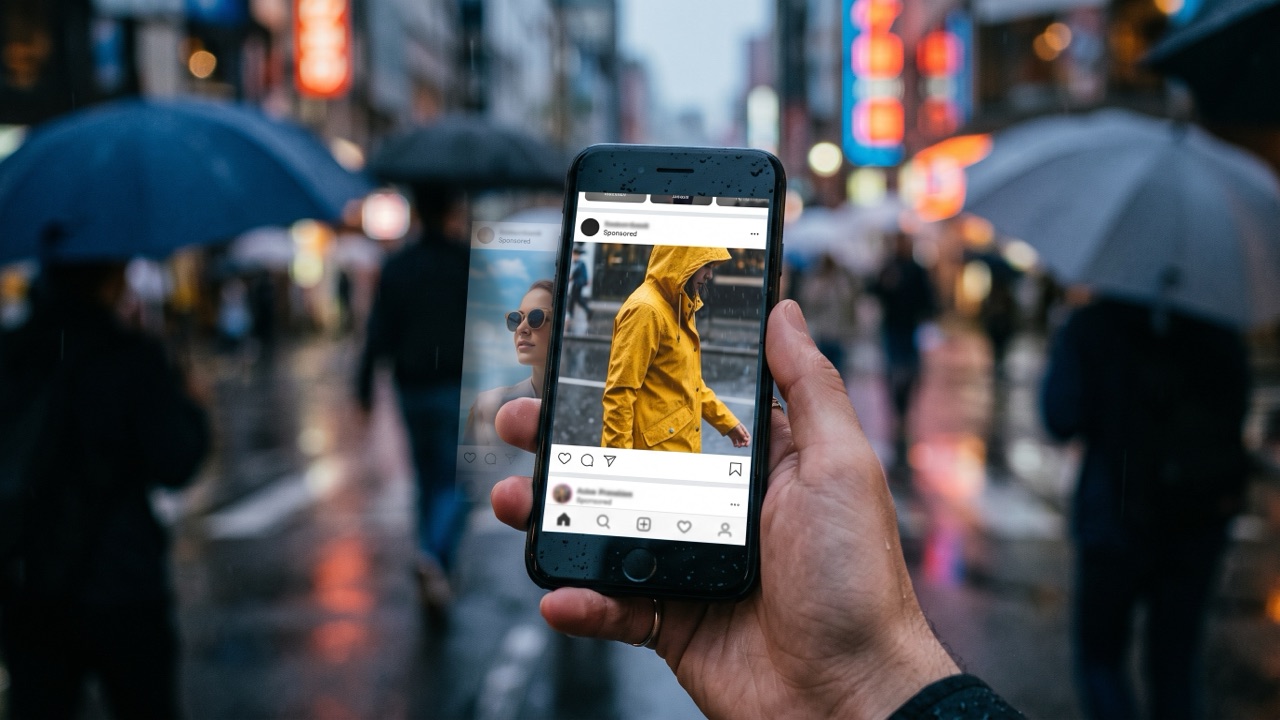
If you’ve ever wished your ads could react to the weather, picture this:
- A rainy day hits, and your ad for waterproof jackets switches on.
- A heatwave rolls in, and your ice-cream promo moves front and centre.
- Strong winds arrive, and your kitesurfing gear gets its moment.
That’s the idea behind weather-triggered Facebook ads: ads that switch on or off depending on what’s happening outside, so the message matches the conditions people are in.
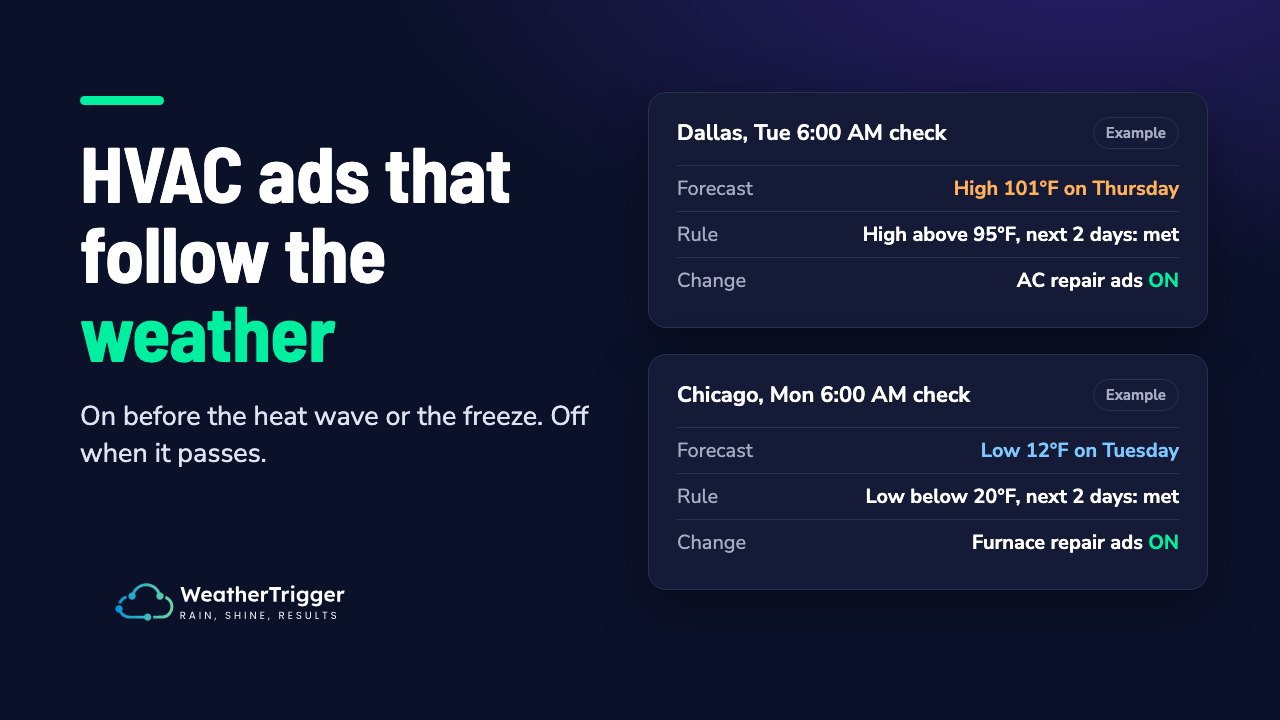
You don’t need a dev team to set this up. You can use Make.com (formerly Integromat) to build your own automation that controls Facebook ad sets based on the forecast. If you’d rather not build and maintain it yourself, WeatherTrigger does the same job as a ready-made tool.
In this guide, I’ll show you exactly how to set up a weather-triggered Facebook ad campaign for a water sports retailer, using Make.
Why Weather-Triggered Facebook Ads Can Work
Timing matters in marketing. People respond to offers that match their situation, and the weather changes what they need:
- Cold weather → warm clothes, hot drinks, heaters.
- Sunny days → sunglasses, outdoor events, travel deals.
- Storm warnings → insurance, repairs, delivery services.
Tying ads to the forecast means you show the relevant offer when it’s relevant, and stop paying for it when it isn’t. For the evidence on how weather affects buying, see how weather affects consumer behaviour, and for how to test whether it’s working for you, see weather ad measurement.
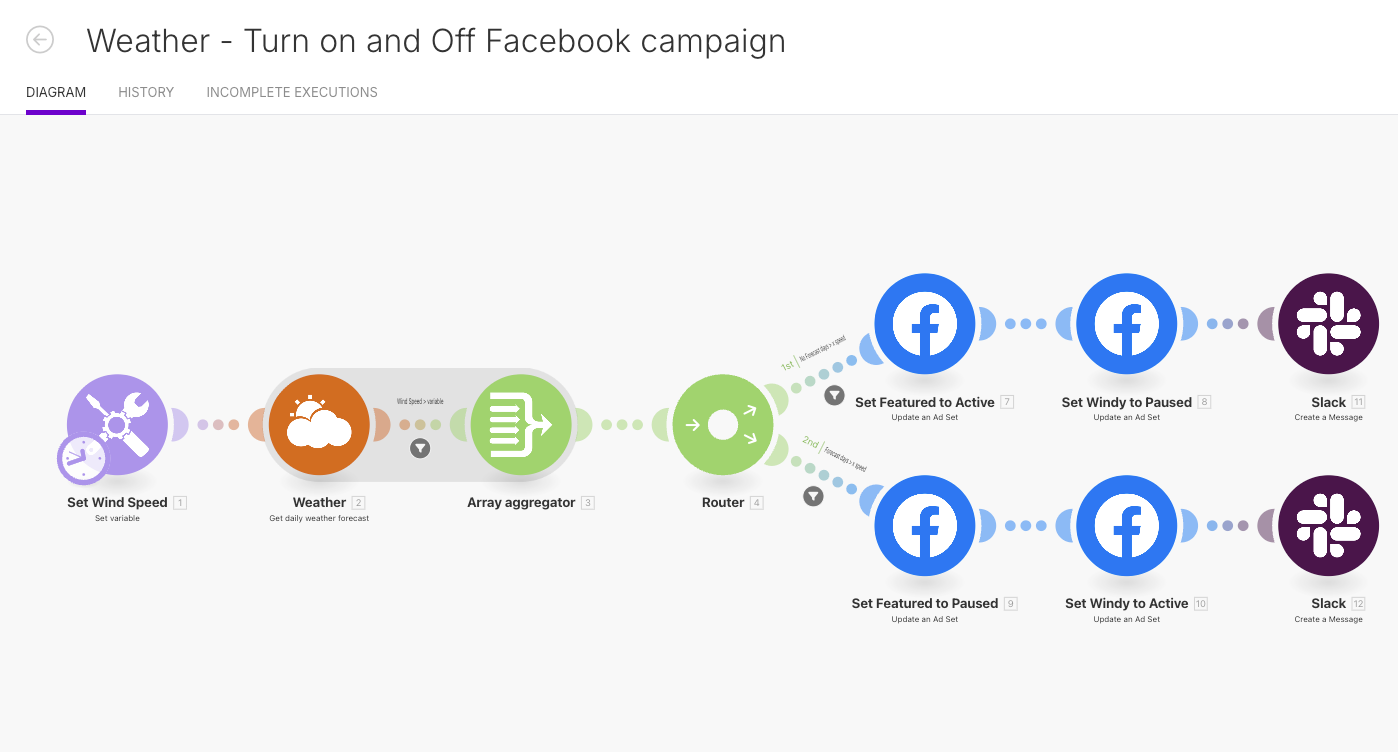
In the example in the image above, we’re turning a Dynamic Meta Catalogue ad set on and off based on wind speed. The client we built this for sells wing foiling gear. When the wind blows, wing foilers get out on the water, and that’s when they’re thinking about new gear. For this advertiser it’s about being visible at that moment, particularly on Facebook Marketplace. If your products live in Shopify, see how to create seasonal catalogues in Shopify for Meta ads.
The Automation You’ll Build
Here’s a quick overview of the automation we’re setting up in Make:
- Check the weather forecast for your chosen location.
- Compare it to a threshold (e.g. wind speed, temperature, rainfall).
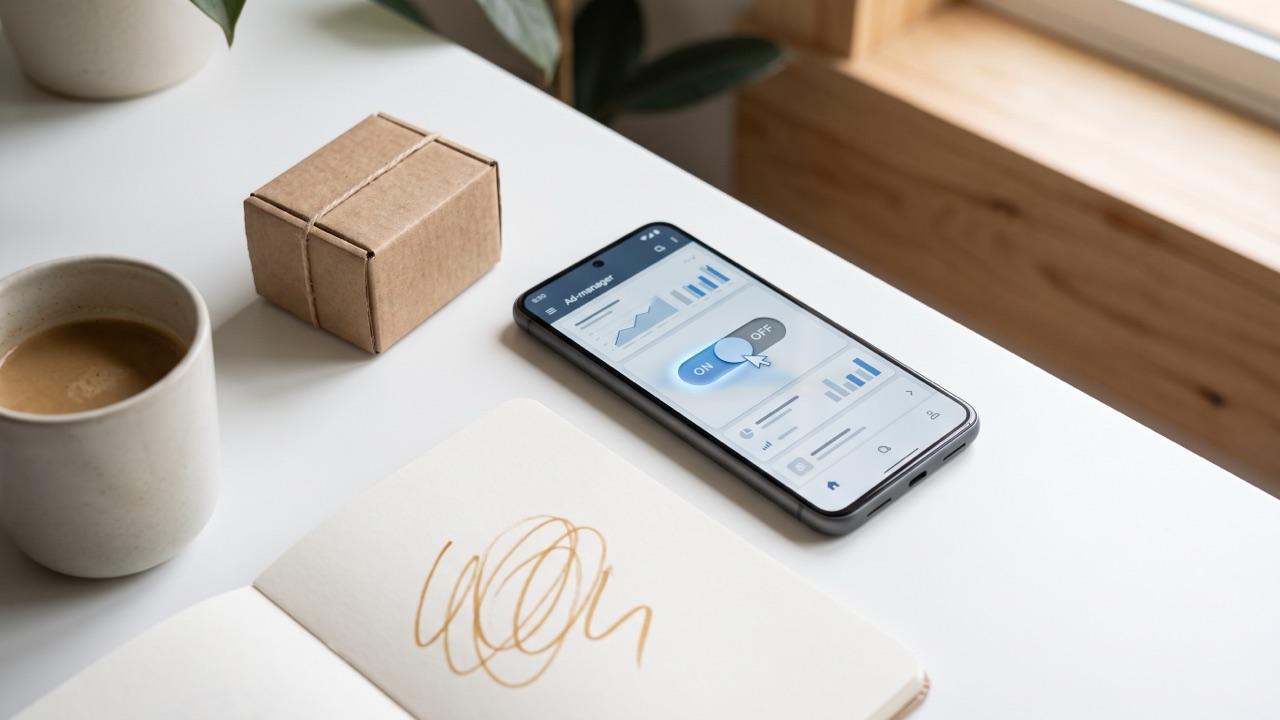
- Turn on the right ad set and pause the other.
- (Optional) Send a Slack notification so you know the switch happened.
Once it’s running, your ad sets follow the forecast without manual toggling.
Step 1: Prep Your Facebook Ad Sets
First, Facebook needs something to toggle between. Create at least two ad sets in Ads Manager:
- Windy Ad Set – ads and creatives tailored for windy days.
- Featured (or Evergreen) Ad Set – your general ads that run when conditions aren’t windy.
Pro tip: you can expand this beyond windy vs not windy. For example, you could set up different ad sets for hot vs cold days, rainy vs sunny, or temperature ranges.
Step 2: Build the Scenario in Make
Here’s how to put the pieces together inside Make:
1. Create a New Scenario
Log in to your Make account and click New Scenario.
2. Add the Weather Module
Search for “Weather” and choose the daily forecast module (listed in Make’s Weather app as Get daily weather forecast, alongside Get current weather). Pick your location (e.g. your store’s city or the region your ads target). Make’s documentation doesn’t say which weather provider sits behind the app, so if you need a specific data source you can call a weather API with an HTTP module instead.
3. Set Your Weather Variable
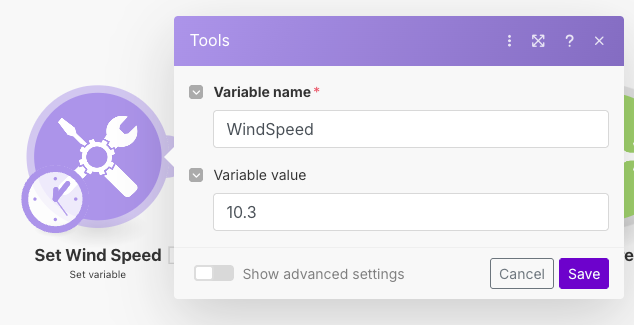
Add a Set Variable module. This defines your trigger point. For example:
windSpeedThreshold = 10.3(m/s)
This means any wind speed greater than or equal to 10.3 metres per second (about 37 km/h) will activate your “Windy” ad set. That figure suited this client; pick a threshold that fits your own product.
4. Add a Router
Drop in a Router module. This lets you create two separate paths: one for windy conditions and one for non-windy conditions.
5. Configure Filters
- Path 1 (Not Windy): wind speed < threshold
- Path 2 (Windy): wind speed ≥ threshold
6. Update Facebook Ad Sets
Add two Facebook Ads modules to each path:
- Not Windy Path:
- Set “Featured” ad set → Active
- Set “Windy” ad set → Paused
- Windy Path:
- Set “Windy” ad set → Active
- Set “Featured” ad set → Paused
7. (Optional) Add Slack Notifications
Want to stay in the loop? Add a Slack module at the end of each path to ping you whenever the switch happens.
Example: Windy vs Not Windy Ads
Here’s how this plays out:
- On calm days, your default “Featured” ad set runs, perhaps promoting general brand awareness or evergreen offers.
- When the wind picks up past your threshold, the automation pauses the “Featured” set and switches on the “Windy” ads. This suits outdoor gear, windproof products, or services like delivery where weather affects demand.
Things to Watch Out For
Before you go live, keep these points in mind:
- Logic checks: Make sure your “if windy” and “if not windy” conditions are set correctly. A small mistake could leave the wrong ads running, or both ad sets on at once.
- Location targeting: The weather location you’re tracking should match your Facebook Ads geo-targeting. No point triggering a Melbourne ad based on Sydney’s forecast.
- Facebook’s learning phase: Resuming an ad set that has been paused for 7 days or more sends it back through the learning phase (Jon Loomer; Meta’s own exit-learning guidance warns against pausing for more than 7 days). Shorter pauses usually don’t reset learning, though delivery can be uneven for a while after resuming. If your weather ad set might sit paused for weeks between windy spells, expect it to relearn each time.
- Advantage+ campaign budget (formerly CBO): If both ad sets sit inside one campaign using Advantage+ campaign budget, pausing one simply shifts its spend to the other ad sets in that campaign. That can be what you want (the budget follows the weather), but it means pausing doesn’t save money. If you want pausing to cut spend, give each ad set its own budget or put them in separate campaigns.
- Check frequency: Run the scenario on a sensible schedule (a few times a day is plenty for a daily forecast). Each run uses Make operations, and flipping ad sets more often than the weather actually changes doesn’t help.
Why Use Make for Weather-Triggered Ads?
Make is flexible and connects directly to both Facebook Ads and Slack, so you can build and adjust the logic yourself without writing code. The trade-off is that you own the maintenance: expired Facebook connections, changed module names and failed runs are yours to spot and fix. If you’d rather compare ready-made options, see our roundup of weather-triggered ad tools.
Final Thoughts
Weather-triggered Facebook ads are a practical way to keep your ads in step with conditions outside.
With a simple automation in Make, you can:
- Sync your ad sets to the forecast.
- Save yourself the manual toggling.
- Show people the offer that fits the day they’re having.
If you’d rather skip the build, WeatherTrigger pauses and resumes Meta ad sets by weather, with a check log and optional auto-revert when conditions clear. Try it free for 30 days. No card needed.