
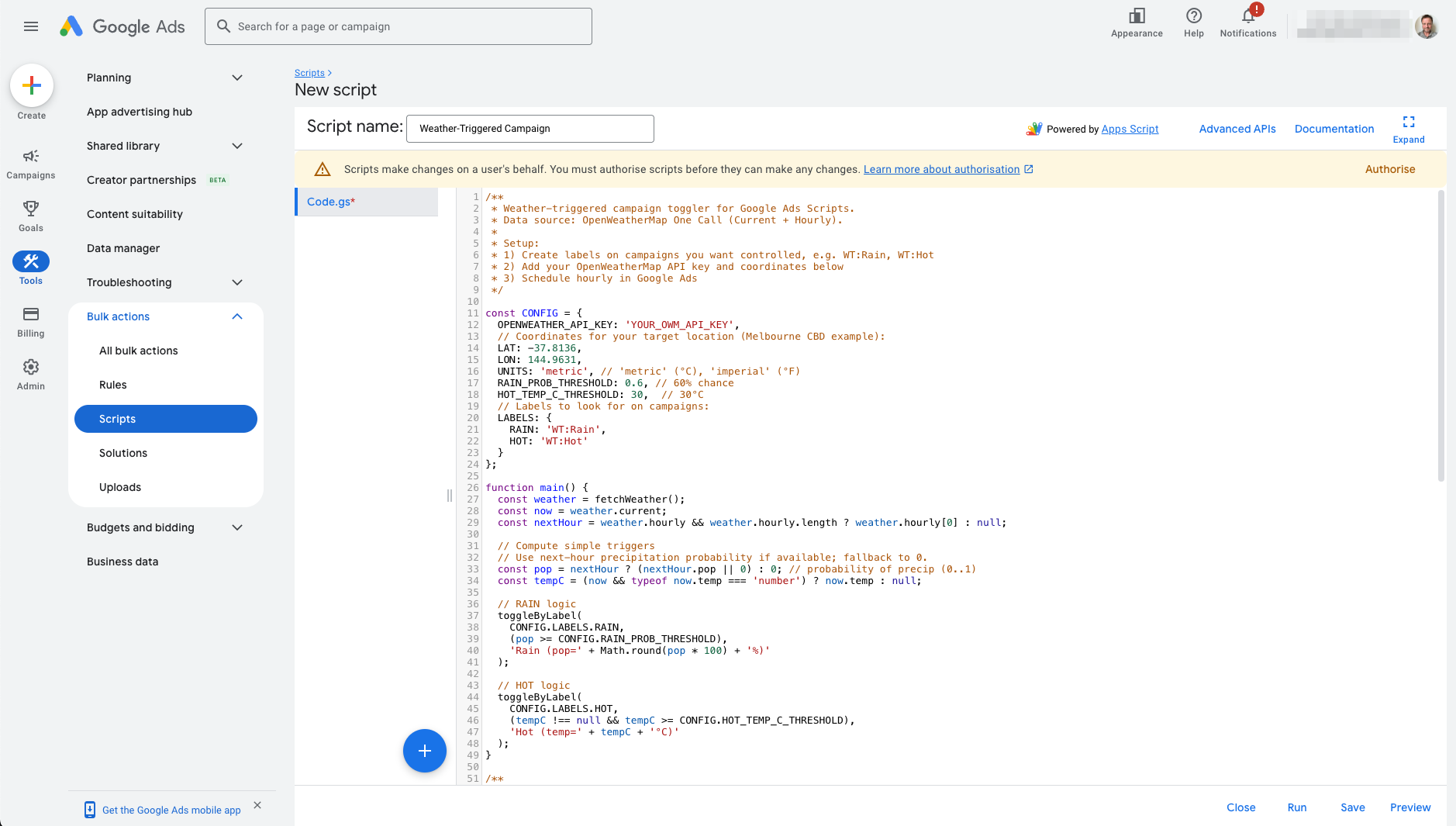
Google Ads scripts let you automate the boring and the impossible: pausing campaigns at 2am, scaling budgets when demand spikes, and reacting to real-world signals like the weather faster than any human can.
This page is a working library of four weather automation scripts you can copy, paste, and schedule today. Each one is commented and takes about 10 minutes to set up. No developer required.
The four scripts:
- Weather on/off toggler turns campaigns on when it rains (or gets hot) and pauses them when it doesn’t.
- Weather budget scaler increases or decreases daily budgets based on conditions instead of hard on/off switching.
- Multi-city toggler runs different weather rules for different locations from one script.
- Weather performance logger records weather alongside campaign metrics in a Google Sheet so you can prove weather actually moves your numbers.
What Are Google Ads Scripts?
Google Ads scripts are snippets of JavaScript that run inside your Google Ads account. They can adjust bids and budgets, pause or enable campaigns, generate reports, and, most usefully here, fetch external data via APIs and act on it.
That last part is the unlock. A script can call a weather API every hour and change your account based on what comes back. Google’s built-in automated rules can’t do that: they only react to data already inside Google Ads.
Why Weather Matters in Digital Advertising
Weather has a direct, measurable influence on what people buy:
- Rain increases demand for umbrellas, food delivery, and rideshares.
- Heatwaves boost sales of air conditioners, cold drinks, and sunscreen.
- Cold snaps lift demand for heating services, winter fashion, and comfort food.
- Windy days drive interest in windproof jackets and certain sports gear.
By syncing campaigns with conditions, you only spend when customers are most receptive. For the research behind this, see how weather affects consumer behaviour.
Before You Start: 10-Minute Setup (All Scripts)
Every script in this library uses the same three ingredients:
- Campaign labels. Label the campaigns you want controlled, e.g. WT:Rain or WT:Hot. Labels tell the script which campaigns to touch and, just as importantly, which to leave alone.
- A weather API key. OpenWeatherMap (used in these scripts) offers hourly forecasts including precipitation probability; Tomorrow.io adds wind, UV, and precipitation intensity if you need them. Both work with UrlFetchApp from inside Google Ads scripts.
- A schedule. In Google Ads: Tools & Settings → Bulk Actions → Scripts → new script → paste → Authorise → Preview to check the logs → schedule Hourly.
Do that once and every script below is a two-minute install.
Script 1: Weather On/Off Campaign Toggler
What it does: checks the current and next-hour forecast, then enables labelled campaigns when their condition is met and pauses them when it isn’t. Run it hourly and your umbrella campaign switches itself on the moment rain is likely.
/**
 * Weather-triggered campaign toggler for Google Ads Scripts.
 * Data source: OpenWeatherMap One Call (Current + Hourly).
 *
 * Setup:
 * 1) Create labels on campaigns you want controlled, e.g. WT:Rain, WT:Hot
 * 2) Add your OpenWeatherMap API key and coordinates below
 * 3) Schedule hourly in Google Ads
 */

const CONFIG = {
  OPENWEATHER_API_KEY: 'YOUR_OWM_API_KEY',
  // Coordinates for the target location (Melbourne CBD example):
  LAT: -37.8136,
  LON: 144.9631,
  UNITS: 'metric', // 'metric' (°C), 'imperial' (°F)
  RAIN_PROB_THRESHOLD: 0.6, // 60% chance
  HOT_TEMP_C_THRESHOLD: 30,  // 30°C
  // Labels to look for on campaigns:
  LABELS: {
    RAIN: 'WT:Rain',
    HOT: 'WT:Hot'
  }
};

function main() {
  const weather = fetchWeather();
  const now = weather.current;
  const nextHour = weather.hourly && weather.hourly.length ? weather.hourly[0] : null;

  // Compute simple triggers
  // Use next-hour precipitation probability if available; fallback to 0.
  const pop = nextHour ? (nextHour.pop || 0) : 0; // probability of precip (0..1)
  const tempC = (now && typeof now.temp === 'number') ? now.temp : null;

  // RAIN logic
  toggleByLabel(
    CONFIG.LABELS.RAIN,
    (pop >= CONFIG.RAIN_PROB_THRESHOLD),
    'Rain (pop=' + Math.round(pop * 100) + '%)'
  );

  // HOT logic
  toggleByLabel(
    CONFIG.LABELS.HOT,
    (tempC !== null && tempC >= CONFIG.HOT_TEMP_C_THRESHOLD),
    'Hot (temp=' + tempC + '°C)'
  );
}

/**
 * Enable campaigns with label if condition true; otherwise pause them.
 */
function toggleByLabel(labelName, shouldEnable, reason) {
  const it = AdsApp.campaigns()
    .withCondition('LabelNames CONTAINS_ANY ["' + labelName + '"]')
    .withCondition("Status != REMOVED")
    .get();

  const actions = { enabled: 0, paused: 0 };

  while (it.hasNext()) {
    const c = it.next();
    const name = c.getName();

    if (shouldEnable) {
      if (!c.isEnabled()) {
        c.enable();
        Logger.log('ENABLED: ' + name + ' | ' + reason);
        actions.enabled++;
      }
    } else {
      if (!c.isPaused()) {
        c.pause();
        Logger.log('PAUSED: ' + name + ' | ' + reason);
        actions.paused++;
      }
    }
  }
  Logger.log('Label "' + labelName + '": enabled ' + actions.enabled + ', paused ' + actions.paused);
}

/**
 * Calls OpenWeatherMap One Call API (current + hourly).
 * Returns JSON with fields: current, hourly, etc.
 */
function fetchWeather() {
  const url = [
    'https://api.openweathermap.org/data/3.0/onecall',
    '?lat=', encodeURIComponent(CONFIG.LAT),
    '&lon=', encodeURIComponent(CONFIG.LON),
    '&units=', encodeURIComponent(CONFIG.UNITS),
    '&exclude=minutely,daily,alerts',
    '&appid=', encodeURIComponent(CONFIG.OPENWEATHER_API_KEY)
  ].join('');

  const res = UrlFetchApp.fetch(url, { 'muteHttpExceptions': true, 'method': 'get' });
  const code = res.getResponseCode();
  if (code < 200 || code >= 300) {
    throw new Error('OpenWeather error HTTP ' + code + ': ' + res.getContentText());
  }
  return JSON.parse(res.getContentText());
}
How to customise quickly:
- Change LAT/LON to your target city (or use Script 3 for multiple cities).
- Adjust RAIN_PROB_THRESHOLD and HOT_TEMP_C_THRESHOLD for your brand.
- Swap UNITS to “imperial” if you prefer °F.
Script 2: Weather Budget Scaler
What it does: instead of switching campaigns on and off, this script scales daily budgets up when your weather condition hits and back down when it passes. Hard on/off switching can hurt campaigns that need consistent delivery; budget scaling keeps them live but leans into demand spikes.
It stores each campaign’s base budget in Script Properties the first time it runs, so it always scales from the true baseline rather than compounding multiplier on multiplier.
/**
 * Weather-based budget scaler for Google Ads Scripts.
 * Scales labelled campaign budgets by a multiplier when a weather
 * condition is met, and restores the base budget when it is not.
 *
 * Setup:
 * 1) Label campaigns with WT:BudgetRain and/or WT:BudgetHot
 * 2) Add your OpenWeatherMap API key and coordinates below
 * 3) Schedule hourly in Google Ads
 */

const CONFIG = {
  OPENWEATHER_API_KEY: 'YOUR_OWM_API_KEY',
  LAT: -37.8136,          // Melbourne CBD example
  LON: 144.9631,
  UNITS: 'metric',
  RAIN_PROB_THRESHOLD: 0.6,   // 60% chance of rain
  HOT_TEMP_C_THRESHOLD: 30,   // 30°C
  RAIN_BUDGET_MULTIPLIER: 1.5, // +50% budget when raining
  HOT_BUDGET_MULTIPLIER: 2.0,  // double budget in a heatwave
  LABELS: {
    RAIN: 'WT:BudgetRain',
    HOT: 'WT:BudgetHot'
  }
};

function main() {
  const weather = fetchWeather();
  const nextHour = weather.hourly && weather.hourly.length ? weather.hourly[0] : null;
  const pop = nextHour ? (nextHour.pop || 0) : 0;
  const tempC = (weather.current && typeof weather.current.temp === 'number')
    ? weather.current.temp : null;

  scaleByLabel(
    CONFIG.LABELS.RAIN,
    pop >= CONFIG.RAIN_PROB_THRESHOLD,
    CONFIG.RAIN_BUDGET_MULTIPLIER,
    'Rain (pop=' + Math.round(pop * 100) + '%)'
  );

  scaleByLabel(
    CONFIG.LABELS.HOT,
    tempC !== null && tempC >= CONFIG.HOT_TEMP_C_THRESHOLD,
    CONFIG.HOT_BUDGET_MULTIPLIER,
    'Hot (temp=' + tempC + '°C)'
  );
}

/**
 * Scales budgets for campaigns carrying labelName.
 * Base budgets are remembered in Script Properties so the
 * multiplier is always applied to the original amount.
 */
function scaleByLabel(labelName, conditionMet, multiplier, reason) {
  const props = PropertiesService.getScriptProperties();
  const it = AdsApp.campaigns()
    .withCondition('LabelNames CONTAINS_ANY ["' + labelName + '"]')
    .withCondition('Status != REMOVED')
    .get();

  while (it.hasNext()) {
    const c = it.next();
    const key = 'base_budget_' + c.getId();
    let base = parseFloat(props.getProperty(key));

    if (isNaN(base)) {
      base = c.getBudget().getAmount();
      props.setProperty(key, String(base));
    }

    const target = conditionMet
      ? Math.round(base * multiplier * 100) / 100
      : base;

    if (c.getBudget().getAmount() !== target) {
      c.getBudget().setAmount(target);
      Logger.log((conditionMet ? 'SCALED: ' : 'RESTORED: ') +
        c.getName() + ' to ' + target + ' | ' + reason);
    }
  }
}

function fetchWeather() {
  const url = [
    'https://api.openweathermap.org/data/3.0/onecall',
    '?lat=', encodeURIComponent(CONFIG.LAT),
    '&lon=', encodeURIComponent(CONFIG.LON),
    '&units=', encodeURIComponent(CONFIG.UNITS),
    '&exclude=minutely,daily,alerts',
    '&appid=', encodeURIComponent(CONFIG.OPENWEATHER_API_KEY)
  ].join('');

  const res = UrlFetchApp.fetch(url, { muteHttpExceptions: true, method: 'get' });
  const code = res.getResponseCode();
  if (code < 200 || code >= 300) {
    throw new Error('OpenWeather error HTTP ' + code + ': ' + res.getContentText());
  }
  return JSON.parse(res.getContentText());
}
When to use this instead of Script 1: campaigns running Smart Bidding, where pausing resets learning, or any campaign where you want weather to be a throttle rather than a switch.
Script 3: Multi-City Weather Toggler
What it does: the same logic as Script 1, but driven by a city table. Each city gets its own coordinates and label suffix (WT:Rain:Sydney, WT:Rain:Melbourne), so a national advertiser can run localised weather rules from a single script. One API call per city per run keeps you inside free-tier limits for most accounts.
/**
 * Multi-city weather toggler for Google Ads Scripts.
 * Each city has its own coordinates and label suffix, e.g.
 * WT:Rain:Sydney, WT:Hot:Melbourne.
 *
 * Setup:
 * 1) Label campaigns per city, e.g. WT:Rain:Sydney
 * 2) Add cities to the CITIES array below
 * 3) Schedule hourly in Google Ads
 */

const CONFIG = {
  OPENWEATHER_API_KEY: 'YOUR_OWM_API_KEY',
  UNITS: 'metric',
  RAIN_PROB_THRESHOLD: 0.6,
  HOT_TEMP_C_THRESHOLD: 30,
  CITIES: [
    { name: 'Sydney',    lat: -33.8688, lon: 151.2093 },
    { name: 'Melbourne', lat: -37.8136, lon: 144.9631 },
    { name: 'Brisbane',  lat: -27.4698, lon: 153.0251 }
  ]
};

function main() {
  CONFIG.CITIES.forEach(function (city) {
    const weather = fetchWeather(city.lat, city.lon);
    const nextHour = weather.hourly && weather.hourly.length ? weather.hourly[0] : null;
    const pop = nextHour ? (nextHour.pop || 0) : 0;
    const tempC = (weather.current && typeof weather.current.temp === 'number')
      ? weather.current.temp : null;

    toggleByLabel(
      'WT:Rain:' + city.name,
      pop >= CONFIG.RAIN_PROB_THRESHOLD,
      city.name + ' rain (pop=' + Math.round(pop * 100) + '%)'
    );

    toggleByLabel(
      'WT:Hot:' + city.name,
      tempC !== null && tempC >= CONFIG.HOT_TEMP_C_THRESHOLD,
      city.name + ' hot (temp=' + tempC + '°C)'
    );
  });
}

function toggleByLabel(labelName, shouldEnable, reason) {
  const it = AdsApp.campaigns()
    .withCondition('LabelNames CONTAINS_ANY ["' + labelName + '"]')
    .withCondition('Status != REMOVED')
    .get();

  while (it.hasNext()) {
    const c = it.next();
    if (shouldEnable && !c.isEnabled()) {
      c.enable();
      Logger.log('ENABLED: ' + c.getName() + ' | ' + reason);
    } else if (!shouldEnable && !c.isPaused()) {
      c.pause();
      Logger.log('PAUSED: ' + c.getName() + ' | ' + reason);
    }
  }
}

function fetchWeather(lat, lon) {
  const url = [
    'https://api.openweathermap.org/data/3.0/onecall',
    '?lat=', encodeURIComponent(lat),
    '&lon=', encodeURIComponent(lon),
    '&units=', encodeURIComponent(CONFIG.UNITS),
    '&exclude=minutely,daily,alerts',
    '&appid=', encodeURIComponent(CONFIG.OPENWEATHER_API_KEY)
  ].join('');

  const res = UrlFetchApp.fetch(url, { muteHttpExceptions: true, method: 'get' });
  const code = res.getResponseCode();
  if (code < 200 || code >= 300) {
    throw new Error('OpenWeather error HTTP ' + code + ': ' + res.getContentText());
  }
  return JSON.parse(res.getContentText());
}
Script 4: Weather Performance Logger
What it does: once an hour, appends a row to a Google Sheet with the current temperature, rain probability, and your labelled campaigns’ spend, clicks, and conversions for the day. After a few weeks you have the dataset that answers the only question that matters: does weather actually move your numbers? Pair it with our guide to measuring weather ad ROI.
/**
 * Weather performance logger for Google Ads Scripts.
 * Appends one row per run to a Google Sheet: timestamp, temp,
 * rain probability, and today's spend/clicks/conversions for
 * each labelled campaign.
 *
 * Setup:
 * 1) Create a blank Google Sheet and paste its URL below
 * 2) Label the campaigns you want tracked with WT:Log
 * 3) Schedule hourly in Google Ads
 */

const CONFIG = {
  OPENWEATHER_API_KEY: 'YOUR_OWM_API_KEY',
  LAT: -37.8136,
  LON: 144.9631,
  UNITS: 'metric',
  SHEET_URL: 'https://docs.google.com/spreadsheets/d/YOUR_SHEET_ID/edit',
  LABEL: 'WT:Log'
};

function main() {
  const weather = fetchWeather();
  const nextHour = weather.hourly && weather.hourly.length ? weather.hourly[0] : null;
  const pop = nextHour ? (nextHour.pop || 0) : 0;
  const tempC = (weather.current && typeof weather.current.temp === 'number')
    ? weather.current.temp : null;

  const sheet = SpreadsheetApp.openByUrl(CONFIG.SHEET_URL).getActiveSheet();
  if (sheet.getLastRow() === 0) {
    sheet.appendRow(['Timestamp', 'Temp C', 'Rain prob %', 'Campaign',
      'Cost today', 'Clicks today', 'Conversions today']);
  }

  const it = AdsApp.campaigns()
    .withCondition('LabelNames CONTAINS_ANY ["' + CONFIG.LABEL + '"]')
    .withCondition('Status != REMOVED')
    .get();

  while (it.hasNext()) {
    const c = it.next();
    const stats = c.getStatsFor('TODAY');
    sheet.appendRow([
      new Date(),
      tempC,
      Math.round(pop * 100),
      c.getName(),
      stats.getCost(),
      stats.getClicks(),
      stats.getConversions()
    ]);
  }
}

function fetchWeather() {
  const url = [
    'https://api.openweathermap.org/data/3.0/onecall',
    '?lat=', encodeURIComponent(CONFIG.LAT),
    '&lon=', encodeURIComponent(CONFIG.LON),
    '&units=', encodeURIComponent(CONFIG.UNITS),
    '&exclude=minutely,daily,alerts',
    '&appid=', encodeURIComponent(CONFIG.OPENWEATHER_API_KEY)
  ].join('');

  const res = UrlFetchApp.fetch(url, { muteHttpExceptions: true, method: 'get' });
  const code = res.getResponseCode();
  if (code < 200 || code >= 300) {
    throw new Error('OpenWeather error HTTP ' + code + ': ' + res.getContentText());
  }
  return JSON.parse(res.getContentText());
}
Google Ads Scripts vs Automation Platforms: Which Is Best?
Scripts are free and flexible. Platforms cost money and save time. The honest comparison:
| Google Ads scripts | Automation platform (e.g. WeatherTrigger) | |
|---|---|---|
| Cost | Free (plus weather API fees at scale) | Monthly subscription |
| Setup | Copy, paste, authorise, schedule | Connect account, set rules in a UI |
| Maintenance | You own it: API changes, errors, monitoring | Handled for you |
| Channels | Google Ads only | Google Ads and Meta from one rule set |
| Complex rules | Anything you can code | AND/OR conditions, no code |
| Failure visibility | Check logs yourself | Alerts and execution history |
Short answer: if you run one or two campaigns in one city, use the scripts on this page. If you manage weather rules across multiple campaigns, cities, or both Google and Meta, a platform pays for itself in maintenance time alone. That’s exactly why we’re building WeatherTrigger: plug-and-play weather automation for Google Ads and Meta with no code and no scheduling headaches.
Common Gotchas (and Fixes)
- API limits: free weather API tiers cap requests. One call per hour per city is fine; per-campaign calls are not.
- Flip-flopping: weather changes fast. Add hysteresis: require two consecutive “true” checks before enabling and two “false” checks before pausing, storing the last state in Script Properties.
- Smart Bidding resets: frequent pausing can restart bid-strategy learning. Prefer Script 2 (budget scaling) for Smart Bidding campaigns.
- Time zones: scripts run in your account’s time zone, but forecasts are location-based. Multi-city advertisers should use Script 3’s per-city coordinates.
- Permissions: the authorising user needs edit rights on campaigns and labels.
Frequently Asked Questions
Are Google Ads scripts free?
Yes. Scripts run inside your Google Ads account at no cost. The only potential expense here is a weather API plan, and OpenWeatherMap’s free tier covers hourly checks for a single location.
How often can Google Ads scripts run?
The minimum schedule is hourly, which is exactly right for weather automation. Each execution can run for up to 30 minutes.
Do these scripts work with Performance Max?
Scripts can pause and enable Performance Max campaigns and change their budgets, so Scripts 1 and 2 work. Asset-level control inside PMax is not available to scripts.
Can Google Ads scripts adjust bids based on weather?
Yes, but budget scaling (Script 2) is usually the better lever. With Smart Bidding now the default, direct bid manipulation fights the algorithm; budget changes work with it.
What about Meta ads?
Google Ads scripts only work inside Google Ads. For the Meta equivalent, see our guide to weather-triggered Facebook ads with Make.com, or join the WeatherTrigger waitlist to run both platforms from one rule set.
Get the Scripts + Setup Checklist by Email
Want all four scripts plus our 10-minute setup checklist in your inbox? Enter your email below. You’ll also be first in line when WeatherTrigger opens access: plug-and-play weather-based ad automation across Google Ads and Meta, no code required.